Posts

Mapping with Google Course
Image
Google does it again! I just finished the Mapping with Google course. Awesome! This makes summer learning fun! Google courses are so well prepared. You don't want to miss any of them! It focused on Google Maps and Google Earth. This course was led by the product managers themselves. How good is that, huh? If you registered, you received an invitation to access the preview of the new and improved Google Maps and to Google Maps Engine Lite. Eventually we'll all have this version. What's new (or maybe just new to me)? Google Maps Getting step by step directions with estimated travel times for different travel options. See ratings for businesses. View traffic reports. Easily drag the path to try alternative routes. Switch between maps and earth view. View images of interesting places on the bottom as a carrousel. Cool explore features - natural like. Here's a sneak preview: Before:   After: Google Maps Engine Lite Create your own maps. Add pl...
Mailbox Rules

Image
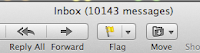
The school year is over and now I am faced with 10,000+ messages on my school's email account. How can I accumulate that many? Well, that's me, I don't like to erase messages, until the end of the year, just in case I need them. The truth is that I have been able to save my day or someone else's by recovering a past email. Hey, I did partially organize my mail throughout the year, otherwise, I'd have about 20,000 by now. I've been using mailbox rules. They are very useful for automatically applying an action to a specific type of message. What actions can there be? Here's an image of what can be done in Apple's Mail application. What I use the most is Move Message to a specific folder On My Mac and Delete Message . Another rule I use, not quite for organizing, but to be alert, is Set Color to Message . That way I can "highlight" messages I receive from people I want to make sure I don't miss reading. Let's see how t...

Google Search App - Revised

Image
N o, it's not deja vu, I had reviewed this app back in March . However, after I updated several apps on my iPad, I noticed that this one didn't look the same. I went back to see the old blog post for this app, and yep, there it was, it was different! So I'm rewriting that post again today. Here goes... I am very excited to share with you an iPad app that I've been trying out. The app I'm referring to is called "Google Search". It brings the power of Google to your fingertips...literally! It's a free app that you can find in the iTunes Store , yet so powerful. Let me show you a little how it works. After you open the app, you will find some options to choose from:   What I use the most is "Apps". I basically use Calendar, which shows your daily agenda, and Drive, which gives you the mobile view of your docs. Cool! The amazing options I'm so excited about that I've been trying out are Voice and Goggles. With Voice you can spea...

YouTube Video Editor

Image
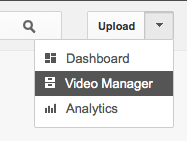
Hi! This is the third and last post of the YouTube series. If you're familiar with iMovie or MovieMaker, you'll love the YouTube Video Editor. It's really easy to use! Spare yourself from having to export and upload again, and again, if you happen to make more changes to your videos. It's all done online, so no need to be tied to a single computer when it comes to working with videos. To access the Video Editor, you can go two ways: In the Upload page, on the right side options. In the Video Manager page, select a video, go to the Enhancements page, and in the bottom right side, you'll see the "Try the YouTube Video Editor" link. Here's an overview of what you 'll find : Project/New Project Search videos (previously uploaded to your video manager) Creative Commons Videos Photos Music Transitions Text Publish Watch this video for a quick demonstration of the editor. Have fun! Cheers!

Interactive YouTube Videos

Image
Hi! This is the second post related to editing videos in YouTube.  Did you know you can make interactive YouTube videos? Yes! This means you can add options to the video so the viewer can decide what to watch next. This is great for story telling, video series, personalized learning, etc.  Here's an example of an interactive video that plays a magic card trick with you . The options are endless ! Remember, this is done in the same place where we edit videos, but now you will go to Annotations .    Basic Steps: Upload first all the videos you'll need to YouTube. Open each video in a different tab. (This is so you can copy-paste the URL of each video easily) Start editing the first video you will start the series with. Add annotations: Note - The annotation will be visible. You write a message in the text box. Spotlight - The annotation is invisible, unless you hover the mouse over it. Great for placing a link over an image in the video. F...

Editing YouTube Videos

Image
I recently began exploring the different features that YouTube offers to edit your videos. They are so easy to use and so helpful! This is the first of a series of 3 blog posts related to YouTube Editing.   Basic Editing Steps: Log in to your Google Account. Yes, YouTube is another Google App! Upload video. You can also record right there or upload images as a slideshow.  Now you're ready to edit. Go to the Video Manager button and look for the Enhancements option in the pull down menu, next to " E dit". Look for the following options and don't be afraid to try them out. I suggest you upload a video just for testing purposes. A very helpful feature is the split window where you can see the original clip on one side and a preview with the changes you're making.   Enhancements: Autofix Stabilize Trim Rotate Revert to Original Fine tune lighting and color Additional Features : Blur all faces (cannot revert) Save/Save As Some things to k...

Word Clouds Made Simple

Image
Can you visualize a long list of words or a long piece of text?  Can you grasp the main idea of a paragraph, with one quick look? Can you tell how many times does the same word appear, with a simple glance? Not that easy, huh? Well, all these tasks become very easy with the help of word clouds. A word cloud is a cluster of words, with a variety of design elements that will make it more attractive. A special characteristic is that the words that are repeated the most will appear larger than the rest. Word clouds can be generated from different sources: a list of words, text or paragraphs, a URL, poems, the contents of a blog, your Twitter feed, and more! Imagine, as a teacher, you'd like to know what three words come to your students' mind when they think of something, let's say "Electricity". You could create a list on the whiteboard, have them hand in papers, or...create a Google form, have the students enter the 3 words, and when all are entered, copy-pa...