Posts

Easily Collect Files via Dropbox

Image
I was recently faced with a situation in which I needed to collect videos from all sorts of persons: some proved tech users and others not so much. An easy solution would have been to ask people to upload their video to Google drive and then share it with me, but not all of them are Google users. Another idea was to have them email the video to me, but the video files might be too large for emailing. So, I decided I would collect the videos through my Dropbox. I have plenty of storage space, so that should work. I created a folder and generated the share folder link. Great! All I needed to do was invite people or share the link. I ran some tests. Wait! People need a Dropbox account in order to submit files to my shared folder? No way! As I mentioned before, not all have the necessary tech skills and much less the willingness to create additional accounts just to be used once. Back to the drawing board. There has to be a better way! I kept searching and testing, and that's when I ...


Word Layout Tricks

Image
A few weeks ago, students in my school worked with Word Publishing Layout templates. They created some e-magazines that we reviewed in an earlier blog post .   The students were already working on their magazine page when I walked into their classroom. Some students were stuck with certain issues. Today I want to share a few tricks I found out, based on the problems the students shared with me.   1. "The template has 6 pages and I only want to use one of them."   Go to View -> Sidebar -> Thumbnail Pane, control-click on the page, Remove Page. 2. "I can't delete the footer or header."   Switch to the View -> Print Layout, double-click on the footer or header area.   3. "I can't see all the text I typed."   Enlarge the text box or click on the green handle on text the box, then draw another text box that will be linked to it and will make the text flow.   4. "I started with a regular Word blank page and don't...

Copyright-Friendly Images

Image
Hi! When your working with elementary students you realize that most of the projects that kids create, whether digital or on paper, include images. We've all seen projects about the solar system, animal life, life cycles, changing earth, a book character, and more. As an educator (or as a parent) you want to teach your children about which pictures are all right to use, starting at an early age. Children need to be aware of what copyright, fair use, and attribution mean. These links provide information made just for kids regarding copyright and fair use. CyberBee Copyright Kids Copyright Mystery For older kids or adults, a very complete website I found that explains everything you need to know about copyrights and fair use is this article from the Social Media Examiner . Below are a few websites that will provide free-to-use images: Pics4Learning : An excellent library of free copyright images for education. Images are arranged in different categories...

PE and iPads

Image
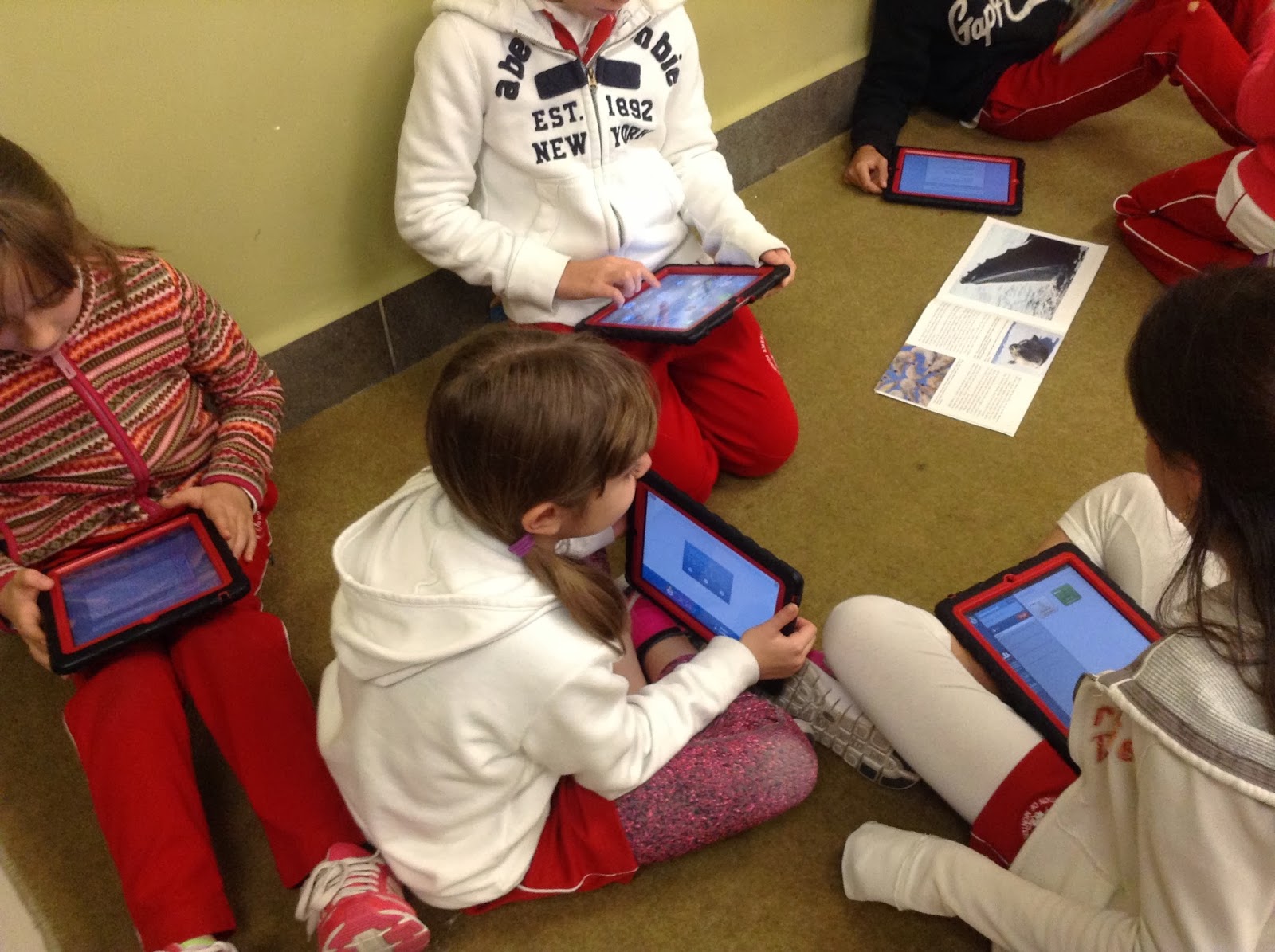
Hello everyone! This week I met with our Elem PE (Physical Education) department. These teachers were equipped with shiny new iPad mini devices at the start of the school year. Additionally, in school we have several iPad carts with full class sets of devices. This time, the teachers were looking for ways in which they could better use the equipment with their students. In this post I'll share what I found and recommended to our PE teachers. This is based on the needs of our PE program and on what resources are available in our school. I divided the list into two parts: 1- What is specific for the teacher, to increase their productivity, efficiency, and enhance their teaching, and 2 - What is geared towards students to improve their learning. Teachers Pre-installed: Music - Play music or play a recording that delivers your lesson. Camera - Record yourself giving instructions or following a routine. Calendar - Synchronize your school calendar with your iPad cale...

eClickers and the 4C's

Image
Hi everyone!  Last week I got to visit a fourth grade classroom. Since this was the first time this group and the teacher were trying out this type of assessment, I was there to help out. The students took a quiz through the app called eClicker Audience on their iPads. The teacher had prepared the questions and answers on the eClicker Presenter app and as a group they took the "live" quiz. Everything worked out just fine! The teacher and the students were very excited about this "interactive" quiz they had just taken for the first time. I was about to leave, when the teacher asks me if it would be possible for the kids to create their own quizzes? I said, "Yes, absolutely!" So I returned the next day with the iPads again. Wow! All it took was a little explaining and demonstration of what to do. They quickly got the hang of it. The difficult part for them now was to come up with good questions and answers. Once they individually finished their questions...

Making Simple e-Magazines

Image
Hi! I hope your year is off to a great start! Upon returning to classes after the Christmas break I had a special request from a teacher: How could she create an electronic magazine. Below are the details of what I figured out, which could also be applied in case of an electronic book. Situation: Third grade students are working on a science unit. As a final evaluation project, each student will create a magazine-like article with the information he found on his topic. All the pages will form one single magazine. The teacher is looking for a way to publish the magazine online so it can be read by all the students and by their parents. The solution should be easy to follow and easy to share. Solution and Workflow:   1. Students uses Pages or Word. 2. Students save and export as a PDF file. 3. Students send files to teacher. 4. Teacher runs the Automator script (see below) to join all PDF files into one single PDF file. 5. Teacher signs in to Joomag and creates...

YouTube Audio Library

Image
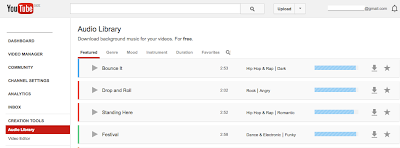
Hi! Happy Holidays! Are you tired of using the same iMovie music tracks for your videos? (or any other application you use) Well, look no further. YouTube offers free background music you can download for your videos! There's a vast collection and it's so easy to find just the right track you need. Here's a sample: In an earlier post we saw that you could edit videos within YouTube , which includes a selection of free music too. But this time we'll see how you can download the music file to your computer and insert it into your favorite movie editing tool. Try it out! Sign in to your YouTube account. Enter your dashboard. Look for CREATION TOOLS. Next, you'll see the Audio Library. Cheers!