Posts

Photos & Videos to/from iPad

Image
At this time I'm going to review another very useful iPad app I've been using. It's the Wireless Transfer App .   With this app it is so easy to wirelessly transfer videos and photos from iPad to iPad, Computer to iPad and iPad to Computer. I'm talking about iPads because that's what I use at school and for myself, but instead of an iPad you can do it with an iPhone, iPod, or between any two iDevices. Works for both PCs and Macs too. Are you frustrated trying to send a video that is too big to be emailed? Don't want to mess with accounts and upload to YouTube? Don't worry about that anymore, with Wireless Transfer you can transfer large videos in a cinch! Get star ted: Purchase the app for only 2.99 USD. Tap on "Send" or "Receive".  Select which device to send to : "Computer" or "iPad". For " Computer ", you will be given a URL.  That's all you nee d! Enter the URL ...

Google Search: Fun & Easy

Image
I am very excited to share with you an iPad app that I've been trying out. The app I'm referring to is called " Google Search ". It brings the power of Google to your fingertips...literally!    Google Search is a free app that you can find in the iTunes store , yet so powerful. Let me show you br iefly how it works. After you open the app, you will find some options to choose from:   What I use the most is "Apps", which looks like this...   I basically use "Calendar", which shows your daily agenda, and "Docs", which gives you the mobile view of your docs. Cool so far! But wait... The amazing options I'm so excited about that I've been trying out are "Voice" and "Goggles". With Voice you can speak and enter a search query. Here's a video that demonstrates this.   ...

Digital Eagle Way

Image
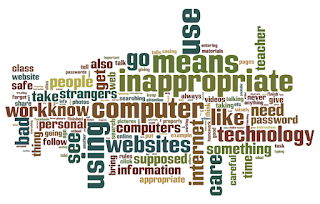
In our school, the students at the Elementary Campus pledge to follow the Eagle Way and be an example to others and to themselves. The Eagle Way is: Be Responsible, Be Respectful, Be Caring, Be Honest, and Be a Thinker. This applies to all aspects of the student's life.  Having a strong technology program at school, I was curious to know what an Eagle would look like in terms of technology. After talking it through with a few colleagues, they suggested I should ask the kids. Great idea! So I prepared a Google Form and sent it to the Technology teachers so they could apply the survey during Tech Class. Wow! I received hundreds of answers from PK - 5th grade! Awesome! I read through all the replies and narrowed their suggestions down to 5 main ideas for each of the Eagle Way attributes. Now we can see how a Digital Eagle Way can be an example to others. To provide a visual, I created a word cloud with all the words in their replies. Be responsible: Go to w...

Action Plan Time

Greetings ! Would you like to be able to find many ideas on how to integrate technology to your daily lesson plans and target various instructional strategies, all in one single place ? How? Keep reading... As part of my Action Plan, that followed to my attendance to the Google Teacher Academy MTV12, I proposed a project in which the idea is to create a toolbox for teachers with resources, provided by teachers, in which technology supports the GANAG lesson schema, created by Jane E. Pollock and the 9 high yield instructional strategies, by Marzano, Pickering and Pollock. If you're not familiar with this lesson design and strategies, visit this li nk and the ones included below to learn more.  Project Description: To create a database that will provide ideas, tools, and examples on how to integrate technology to each of the steps in the GANAG lesson schema and the 9 high yield Instructional strategies ( Classroom Instruction that Works, Marzano, Pickering...

Creating QR Codes

Image
Last week, fourth grade students started working on a project about Native Americans. They will create an exhibit of the different tribes that includes artifacts, pictures, posters, and QR codes. Parents will be invited, along with other teachers. The kids are so excited preparing for this special day! What is new to the kids is what is a QR code, how to create one and what to do with it. Well, QR code stands for Quick Response code. It works in a similar way as barcodes do. In this case, the image is a matrix that shows an arrangement of squares.  A QR code contains information. It could be a URL, text, a telephone number, etc. In order to "read" a QR code, you will need a QR scanner. There are apps you can download to your mobile device and easily read these codes. The iPad app we use at school is called " Scan ". There are two QR code generators I suggest using : QR Stuff In this application, you ...

Twitter for your PLN

Image
Hi! A few days ago I was reflecting on how much Twitter has helped me to grow professionally. In a short time I feel my learning curve has skyrocketed. It also made me realize that there are very few teachers in my school that actually use Twitter. So, I decided to spend this week's training time on evangelizing Twitter and showing them how to form a professional learning network (PLN) through Twitter . Yes, there are other ways to form a network, but not as easy, quick, and simple as Twitter. Just join Twitter, start following the right people, and see the flow of knowledge instantly pour in! You can't go wrong. Focus on your interests and look for who shares them too. Why tweet? Create a community with people sharing your same interests. Find recommended articles, books, web sites, information, tips, etc. Stay up-to-date Open a window and see what others are reading, doing, saying, thinking. Basics things to know: Compos...

More on Google Drive

Hi! A few weeks ago I had written about a few pointers related to Google Drive that have changed the user's perspective. Now I want to share a presentation I prepared this week at school that shows more things to keep in mind when working with the Google Drive user interface.  It's been a slow transition, but we're getting the hang of it now! Cheers Cheers!