Posts

Automator to the rescue!

Image
Just last week I was in need of separating each of the pages of a PDF file into individual JPG files. Hmm...how? My first thought was that I'd have to take a snapshot of each page. I'd probably have to resize the page view so it could fit on the screen, then take the snapshot, and hope the quality of the image wasn't that bad. But there were too many pages...there must be a better way! I searched Google and sure enough, I found the answer! Automator ! I've had the Automator application for the longest time but had never even taken a peek at it. The solution I found involved using Automator . I decided to give it a whirl. Turns out it's not complicated at all. Below you will find the steps I took to create my routine.  1 Create a new workflow 2 Ask for Finder Items 3 Render PDF Pages as Images 4 Move Finder Items   5 Hit Run...and see the magic! 6 Chec...
Password Protect your MS Office Docs

Image
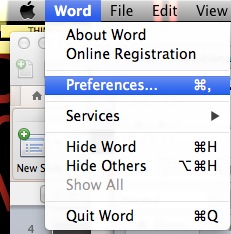
When talking with parents about safety and security, they have had concerns regarding the privacy of individual documents. I put together this quick guide to show how to add a password to a Microsoft Office document when opening or modifying it.   Word 1. Go to Word-Preferences 2. Enter Security 3. Write passwords to Open and/or Modify (If you select “Read-Only”, the person opening it up will not be able to make modifications to the document.) Excel 1. Enter File-Passwords 2. Write the password to Open and/or Modify Powerpoint 1. Enter File-Passwords 2. Choose the option to write the password to Open and/or Modify Now, when you open up, for instance, a protected Word document, you will see something like this: If you have any comments or want to share more suggestions, feel free to add a comment. Cheers!

Safe Searching for Kids

Image
Teachers and parents have asked me for recommended search tools for kids. I have compiled a list of search tools designed for kids. They are all friendly options for young students. Quintura Kids KidsClick Qwiki KidRex SweetSearch Boolify Twurdy Instgrok We all know that the number one search tool is Google. Fortunately it has the option to turn on Strict Filtering (it works for images too) and as a parent, you might also want to lock these preferences. Some basic recommendations I make to kids so they can try to avoid encountering inappropriate material while searching are: Don’t make-up web sites that you type directly in the address box. For example, the child is looking for information about pandas. He types www.pandas.com. Yes, it sometimes works, but most often it’s not what you were looking for. Use correct spelling. The common typos lead you to inappropriate sites. Use keywords. Narrow down your search and make it more specific to the topi...

If at First You Don’t Succeed…Try Again!

Image
I'm not sure when or how I first heard about something called the Google Teacher Academy . That was several years ago. I glanced through the program and didn’t consider it because I thought, “if only a few are selected, I’m not even going to come close, so I think I’ll just pass”. Last year, I was encouraged by a colleague, who was already an Apple Distinguished Educator, to apply for such recognition. I did just that, and to my surprise I was honored and selected ADE 2012. “There’s no stopping me now!”, I thought. Shortly after, the opportunity came around again but now with Google. I was looking for PD opportunities, related to my new position as tech trainer. My school was about to deploy Google Apps for Education. It seemed to me that Google was the way to go. I learned from another colleague that there were Google Certified Trainers and Google Certified Teachers. That’s what I wanted! I looked at the requirements for each of them: I had to take 6 tests regardin...

Online Safety & Security

I’ve been having sessions with parents regarding digital citizenship topics. One of the sessions, I call “Be Wise, Protect Yourself” , has to do with online safety and security. I can’t stress enough the importance of these measures anyone can take to ensure their own and their loved ones’ safety and security. We start by differentiating what each term stands for: • Online Safety refers to making sure you and your kids are not harmed, physically or emotionally, through inappropriate images, videos, content, and interaction with an unknown person that makes you feel uncomfortable. • Online Security refers to making sure your personal information, your files, and equipment are protected from viruses, damage, and thefts. Basic Safety Measures: Be careful when giving out personal information. Don’t post photos and don’t tag them. Don’t accept contacts you don’t recognize. Kids should tell a trusted adult of anything that seems suspicious. Adjust privacy and sec...

Reducing the Size of PDF Files

Image
Why would someone want to reduce the size of a pdf file? I had to do that…twice. When I asked our webmaster if she could please upload to the school’s web site the handouts I made for parents, she said they were too big. So, this is how I solved the problem. My goal was to have my presentation available to parents so they could download it at home. The presentation was made with Keynote, a software application for presentations, part of the iWorks suite, for Macs. The first thing I did was convert the keynote file to pdf format. How?  File –> Export –> PDF.   The original .key file was 111 Mb. Way to big! I knew that, that’s why I converted to pdf. Smart me! Now I had reduced the size to only 4.3 Mb. I also took away the videos, and only included links. That should do the trick. Right? Wrong! Turned out it was still too big. The web master told me it would be best to have the file size down to about 1Mb.  But how? No matter what I rem...

Digital Citizenship & Parents

Image
Last year, as part of my job as tech trainer, I became involved with training parents too. Early in the school year, parents were asked to respond to a general survey asking them about their tech interests. The majority mentioned wanting to learn how to help their children with security and safety, cyber-bullying, digital footprints, etc. At the same time, at the elementary campus, from K-5, we applied short surveys to students to see how much they already knew about digital citizenship topics. Results from K-1, like the ones below, raised some red flags. We were sure that we needed to bring the parents on board in order to make our digital citizenship program initiative a successful one. So I took upon this huge task and started to look for the best way to approach this. In my search I gathered a large collection of online resources. I created a chart to categorize the resources according to the grade level, and developed a scope & sequence chart for the digital citi...